Travel Agent Commissions Report

The Travel Agent Commissions Report allows users to track the commissions percentage of payment collected or payment yet to be collected for every travel agent.

Perform the following steps to generate the report:

Navigate to Reports Dynamic Reports Guests/Reservations Travel Agent Commissions

Refer to the following table and fill in the fields.

Field

Description

Report Name

Travel Agent Commissions

Property Name

Displays the current property name by default.

Start Date

  • The start date from which the report must be generated.

  • Displays the current property date by default.

  • Users can select any dates in the past.

  • Future dates cannot be selected.

End Date

  • The end date up to which the report must be generated.

  • Displays the current property date by default.

  • Users can select a date that is a maximum of 365 days from the start date.

Travel Agent

This is a multi-select drop-down list that displays all the travel agents available at the property.

Restricted Travel Agent

When enabled, only the travel agent profiles that are tagged as CTAC (Restricted Travel Agent) are filtered and displayed.

Include Closed Payments

Displays payments that are collected/completed.

Click Run to generate the report.

Click Save to save the report under User Favorites section.

Sample Report
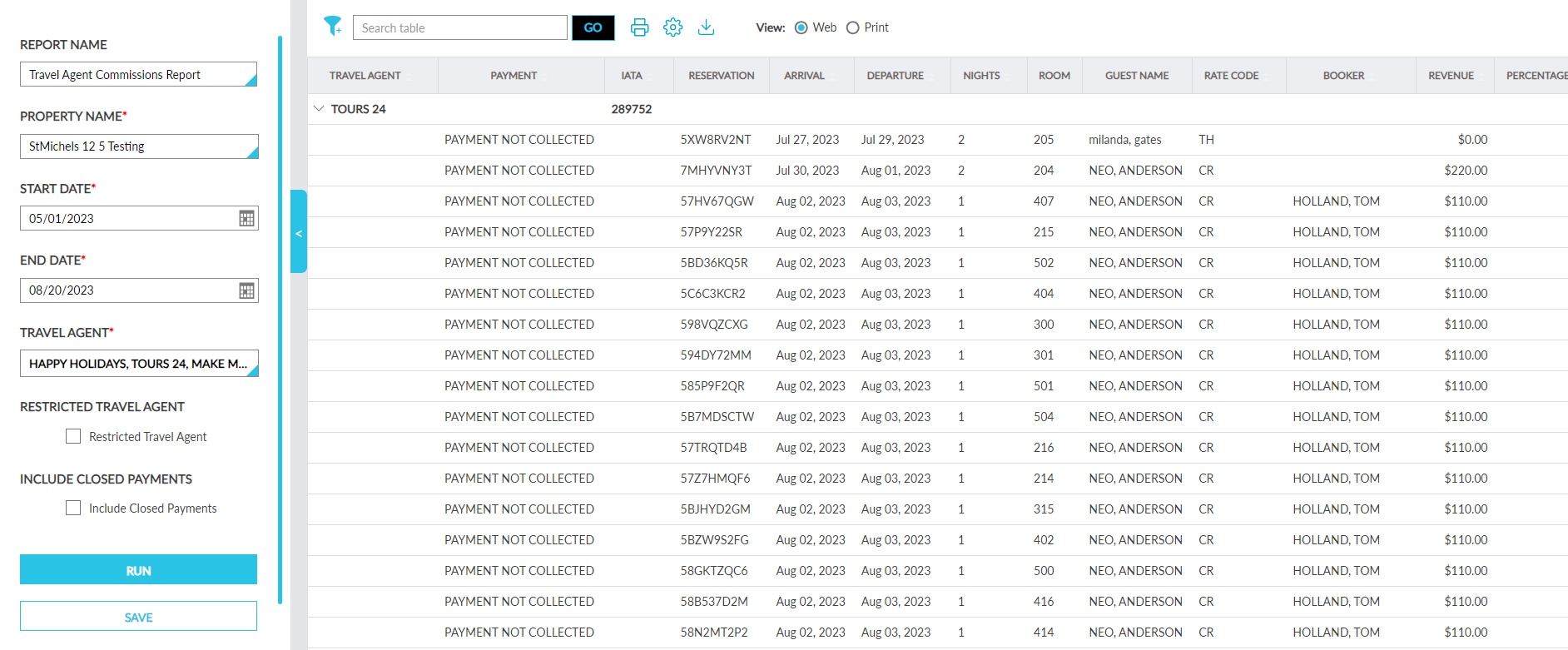
A screenshot of a computer

Description automatically generated

Report Fields

This report displays the following fields:

Field

Description

Travel Agent

  • Displays the travel agent name with an accordion.

  • The accordion is expanded by default. When expanded, the values for the other columns are displayed.

  • Users can search and filter records using this column.

  • This column can be sorted.

Payment

  • Displays whether the payment is collected or not for each reservation associated with the travel agent.

  • Users can filter records using this column.

  • This column can be sorted.

Contact Person

  • Displays the name of the primary contact person associated with the travel agent profile.

  • When a primary contact is not available, the name of the first contact person added to the profile is displayed.

  • This field is left blank when no contact is available for the profile.

  • Users can filter records using this column.

  • This column can be sorted.

Country

  • Displays the address of the primary contact person associated with the travel agent profile.

  • This field is left blank when no address is defined for the travel agent’s contacts.

  • Users can filter records using this column.

  • This column can be sorted.

IATA

  • Displays the IATA number of the travel agent profile.

  • This field is left blank if no IATA number is available.

  • Users can filter records using this column.

  • This column can be sorted.

Reservation

Displays the confirmation ID of the reservations.

Arrival

Displays the arrival date of the reservations. This column can be sorted.

Departure

Displays the departure date of the reservations. This column can be sorted.

Nights

Displays the number of nights for each reservation. This column can be sorted.

Room

Displays the room assigned to the reservation.

Guest Name

Displays the guest name associated with the reservation.

Rate Code

Displays the rate plan code of the rate plan used for booking the first night of stay of the reservation. This column can be sorted.

Booker

Displays the name of the booker profile associated with the reservation. This field is left blank if no booker profile is available. This column can be sorted.

Revenue

Displays the room revenue of the reservation. This column can be sorted.

Percentage

Displays the commission percentage of the reservation. This column can be sorted.

Commission

Displays the commission amount calculated as follows: commission percentage * room revenue. Users can filter records using this column. This column can be sorted.

Check

Displays the check number entered when making the payment. This field is left blank if payment is not yet collected.

Address Type

  • The Address Type of the address.

  • This column is displayed blank when no Address Type is selected for the address details added to the travel agent’s profile.

Street

  • The Street name associated with the address.

  • This column is displayed blank when a Street name are not available for the address.

Address Line 2

  • The Address Line 2 details associated with the address.

  • This column is displayed blank when Address Line 2 details are not available for the address.

Address Line 3

  • The Address Line 3 details associated with the address.

  • This column is displayed blank when Address Line 3 details are not available for the address.

Address Line 4

  • The Address Line 4 details associated with the address.

  • This column is displayed blank when Address Line 4 details are not available for the address.

Address Line 5

  • The Address Line 5 details associated with the address.

  • This column is displayed blank when Address Line 5 details are not available for the address.

City Name

  • The City associated with the address.

  • This column is displayed blank when a City is not available for the address.

State Name

  • The State/Province associated with the address.

  • This column is displayed blank when a State/Province is not available for the address.

Postal Code

  • The Zip/Postal Code associated with the address.

  • This column is displayed blank when the Zip/Postal Code details are not available for the address.

Phone Type

  • The Phone Type of the phone number added to the profile.

  • This column is displayed blank when the Phone Type is not selected for the phone number.

Phone

  • The Number added in the Phone Numbers section of the profile.

  • This column is displayed blank when a phone number is not available for the profile.

Email Type

  • The Email Type selected for the email address added to the profile.

  • This column is displayed blank when the Email Type is not selected for the email address.

Email

  • The Address added in the Email Addresses section of the profile.

  • This column is displayed blank when an email address is not available for the profile.